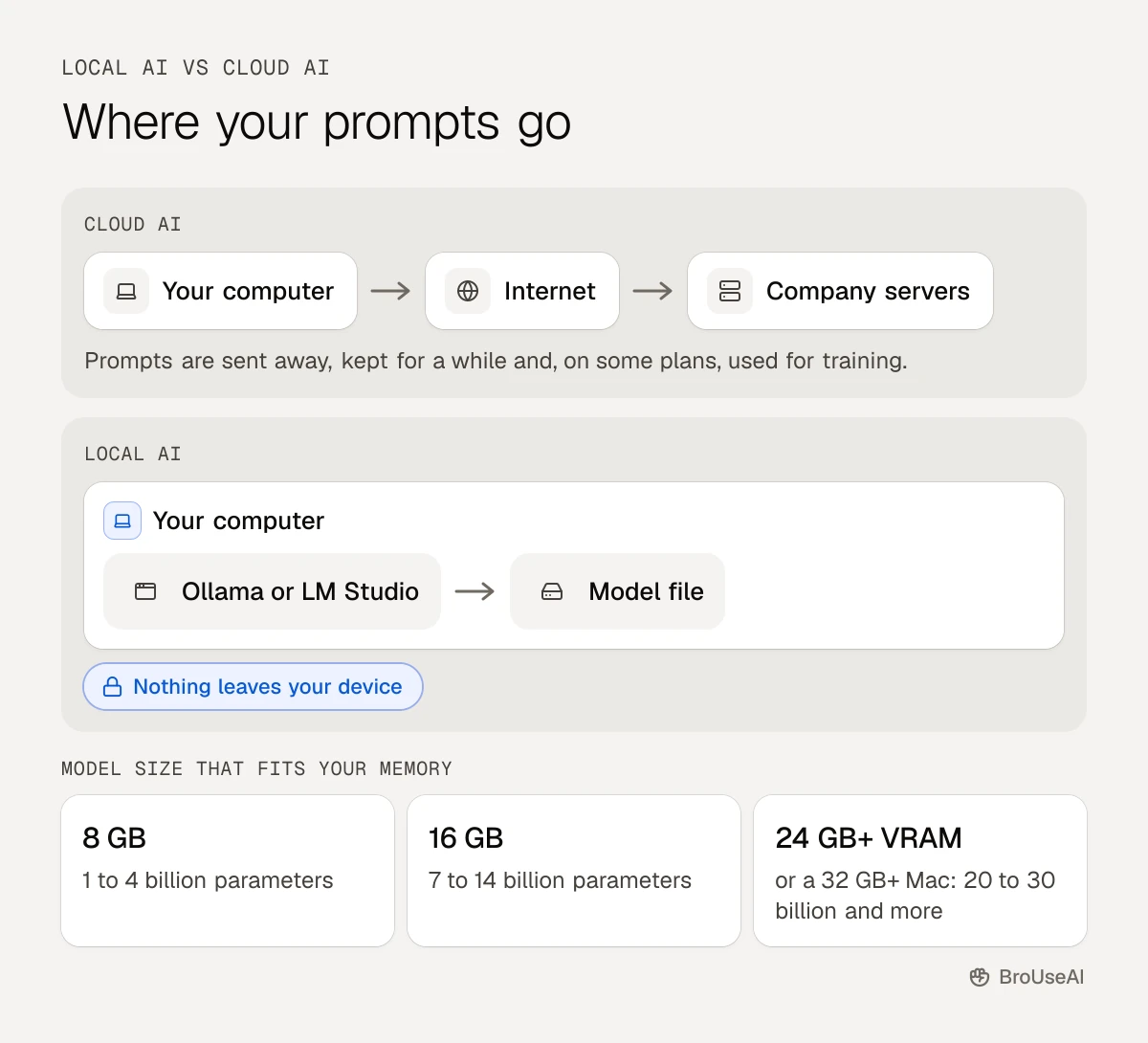
To run AI locally, install a free app such as Ollama or LM Studio, download an open model that fits your computer's memory, and chat with it on your own machine, with no internet connection and no data sent to a company. A recent laptop with 16 GB of memory can run capable small models. This tutorial walks you through it step by step.
Running a model yourself is called local AI. It won't match the biggest cloud models such as ChatGPT or Claude on hard tasks, but for drafting, summarising, private notes and coding help, today's open models are good enough for a lot of everyday work.
Why run AI on your own computer?
- Privacy. Your prompts and files never leave your machine, which matters for client work, health notes or anything confidential.
- Works offline. Once the model is downloaded, it runs on a plane, in a basement or behind a strict company firewall.
- No subscription or limits. The apps and many models are free. You pay only for electricity and the hardware you already own.
- Control. You choose the model and its version, and it won't change under you overnight.
The trade-offs: local models are smaller, so they are weaker at complex reasoning and know less. They're also slower on older hardware, and big models need a lot of memory.
Step 1: Check your hardware
The main limit is memory. A model has to fit in your graphics card's memory (VRAM) or, on Apple Silicon Macs, in the shared "unified" memory. If it doesn't fit, it can spill into normal RAM, but it gets much slower.
| Your computer | What to expect |
|---|---|
| 8 GB RAM, no graphics card | Small models (1 to 4 billion parameters). Fine for short answers and summaries, slow for long ones |
| 16 GB RAM, or a Mac with 16 GB | Models of about 7 to 14 billion parameters. Good everyday assistant |
| 24 GB+ VRAM, or a Mac with 32 GB+ | Models of 20 to 30 billion parameters and more. Closer to cloud quality on many tasks |
LM Studio recommends 16 GB of RAM or more. On a Mac it needs Apple Silicon (M1 or newer) and macOS 14 or later, and on Windows it suggests at least 4 GB of dedicated VRAM. Ollama runs on macOS, Windows and Linux.
Downloads are big, from a couple of gigabytes to tens of gigabytes per model, so check your free disk space too.
Why the size works: quantization
Local apps usually download a quantized version of a model: its numbers are stored with less precision (for example 4-bit instead of 16-bit), so it takes roughly a quarter of the memory with only a small drop in quality. Quantization is why a model that needs a data centre GPU at full size can run on a laptop. You'll see files in the GGUF format, the common format for local models on Hugging Face.
Step 2: Pick an app
| App | Best for | How you use it |
|---|---|---|
| Ollama | Simple setup, developers, connecting other apps | Desktop app plus a command line and a local API |
| LM Studio | Browsing and testing many models with a friendly interface | Desktop app with a built-in model search |
| GPT4All | Beginners, chatting with your own documents, older PCs | Desktop app, runs without a GPU |
All three are free to download. This tutorial uses Ollama first, then shows the LM Studio route.
Step 3: Install Ollama and run your first model
-
Download Ollama from ollama.com for macOS, Windows or Linux and install it like any other app.
-
Open a terminal (Terminal on Mac, PowerShell on Windows).
-
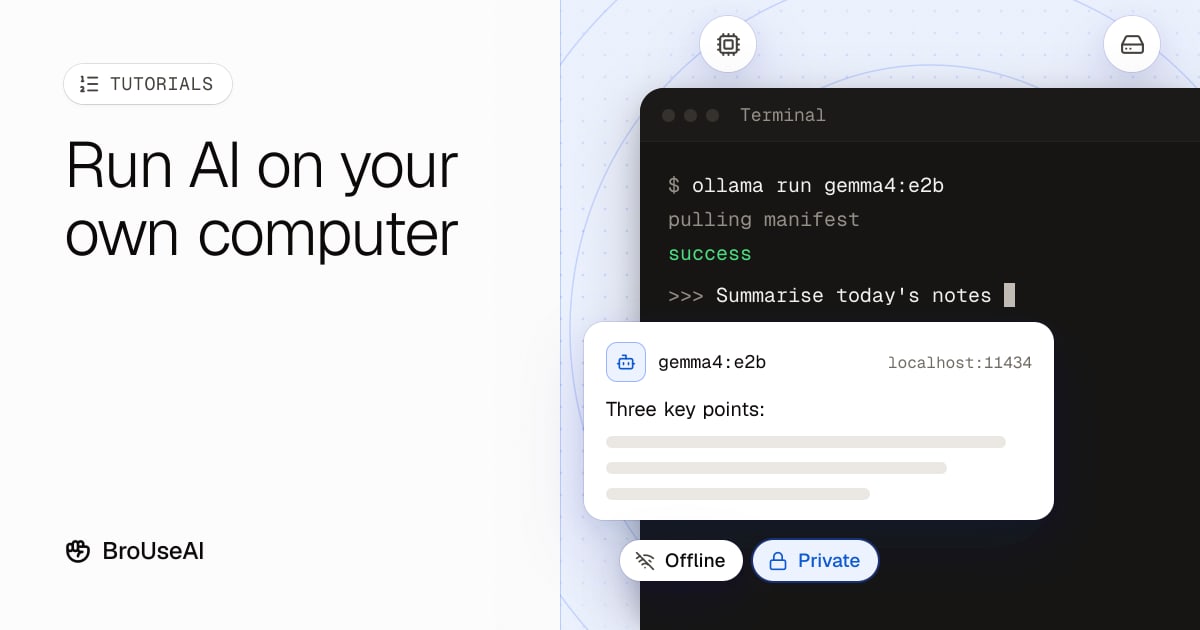
Download and start a model. Ollama's own quickstart uses Google's Gemma 4:
ollama run gemma4:e2bThe first run downloads the model (about 7 GB for this one, and Ollama recommends 8 GB of free VRAM or unified memory). Then a chat starts right in the terminal.
-
Ask it something. Type a question and press Enter. Type
/byeto leave. -
See and remove models.
ollama listshows what you've downloaded, andollama rm <name>deletes a model to free space.
Prefer a chat window? The Ollama desktop app has one, so you can pick a downloaded model and chat without the terminal.
Step 4: Choose a model that fits
The Ollama library and Hugging Face list thousands of open models. Start with a well-known family and pick the size your memory allows:
- Gemma (Google): strong small models, good for writing and general questions.
- Llama (Meta): popular all-rounders with a large ecosystem.
- Mistral (Mistral AI): efficient models, good for European languages.
- Qwen (Alibaba) and DeepSeek: strong at coding and reasoning, with many sizes.
A simple rule: try the largest version that runs at a comfortable speed. If replies crawl, step down a size. For a deeper look at the trade-off, see small language models.
Check the licence before using a model for work. "Open" models come with different licences, and some limit commercial use. Read more about open-source AI.
Step 5: Use your local model from other apps
Ollama runs a local server at http://localhost:11434. Its API is compatible with the OpenAI format, so many apps and code libraries that expect ChatGPT can point at your own computer instead, with no API key. That lets you:
- Connect a chat interface such as Open WebUI for a ChatGPT-like experience
- Use a local model inside code editors and note-taking apps that support Ollama
- Write small scripts that summarise or sort files without sending them anywhere
Ollama also offers optional cloud models that need you to sign in. Those run on Ollama's servers, not your computer, so stick to local models when privacy is the point.
Alternative: the LM Studio route
If you'd rather not touch a terminal:
- Download and install LM Studio from lmstudio.ai.
- Open the Discover tab and search for a model, such as Gemma or Llama.
- Pick a download marked as a good fit for your hardware (LM Studio shows whether it is likely to fit in memory).
- Load it and start chatting in the Chat tab.
- Optional: turn on the local server in the Developer tab to use the model from other apps.
Tips for better speed and results
- Close heavy apps such as games and video editors to free memory.
- Keep the context short. A longer context window uses more memory and slows replies. Start new chats for new topics.
- Plug in your laptop. Many laptops slow the GPU on battery.
- Write clear prompts. Small models need more guidance than big ones, so say exactly what you want, as in our guide to writing better AI prompts.
- Download only from trusted sources such as the official Ollama library or the model maker's Hugging Face page.
The bottom line
Running AI locally takes about ten minutes: install Ollama or LM Studio, download a model sized for your memory and start chatting. You get privacy, offline use and no monthly bill in exchange for smaller, slower models than the big cloud assistants. Many people use both: a local model for private work, and a cloud assistant for the hardest tasks. Browse more local LLM tools in the directory.
Frequently asked questions
Can I run AI locally without a graphics card?
Yes. Ollama, LM Studio and GPT4All can run models on the processor (CPU) using normal RAM. It is slower, so choose a small model of a few billion parameters.
Is running AI locally really private?
Yes, as long as you use a local model and the app runs entirely on your machine. Your prompts and files are processed on your computer and aren't sent to the model maker. Optional cloud models and plugins that go online are the exception.
Is a local model as good as ChatGPT?
Not for the hardest tasks. The biggest cloud models are much larger than what fits on a laptop. For everyday writing, summarising and coding help, good local models of 7 to 30 billion parameters are often close enough.
Is Ollama free?
Yes, the Ollama app is free to download and use for local models. Some models have their own licence terms, and Ollama's optional cloud models have usage limits and paid plans.
Sources
- Ollama, Quickstart and model library
- LM Studio, System requirements
- Nomic AI, GPT4All
- Hugging Face, GGUF documentation